CC Break Monitor
Automatically tracks your active, break, and offline time on Command Center — now with a modern weekly dashboard and day-level deep dive. Works on Firefox and Chrome.
Latest: v3.1.2
Automatically tracks your active, break, and offline time on Command Center — now with a modern weekly dashboard and day-level deep dive. Works on Firefox and Chrome.
Firefox users: Set auto-updates to "On"
After installing, go to about:addons → click CC Break Monitor → set "Allow automatic updates" to On (not "Default").
Why? "Default" relies on your browser's global update setting, which may be off in managed environments. Setting it to "On" ensures you always get the latest bug fixes and features automatically.
v3.1.2 · Signed by Mozilla
Download .xpi
Click to install directly in Firefox.
Auto-updates are built in.
v3.1.2 · Chrome Web Store
Install from Chrome Web Store
Click to open the Chrome Web Store listing.
Auto-updates handled by Chrome.
Tell me what to improve — just your alias and a message
Detects status changes automatically by monitoring Command Center API calls. Zero manual input.
Modern multi-week grid with per-day breakdown, proportion bars, and your weekly target progress.
Click any day for an Active-vs-Break donut or bar chart plus a full work/break timeline.
Set your daily active time goal (default 7h 46m) and see % of target and remaining time at a glance.
Toggle any day Working or Absent so weekly averages stay accurate across leave days.
Switch between dark, light, and system themes. Click ◐ in the panel or configure in Settings.
Optional sync across browsers and machines via a self-hosted backend. Your data, your control.
Download daily CSV reports or full JSON backups with one click.
Panel docks into the CC widget area or floats freely. Drag to reposition in floating mode.
All data stored locally by default. No analytics, no telemetry, no third-party services.
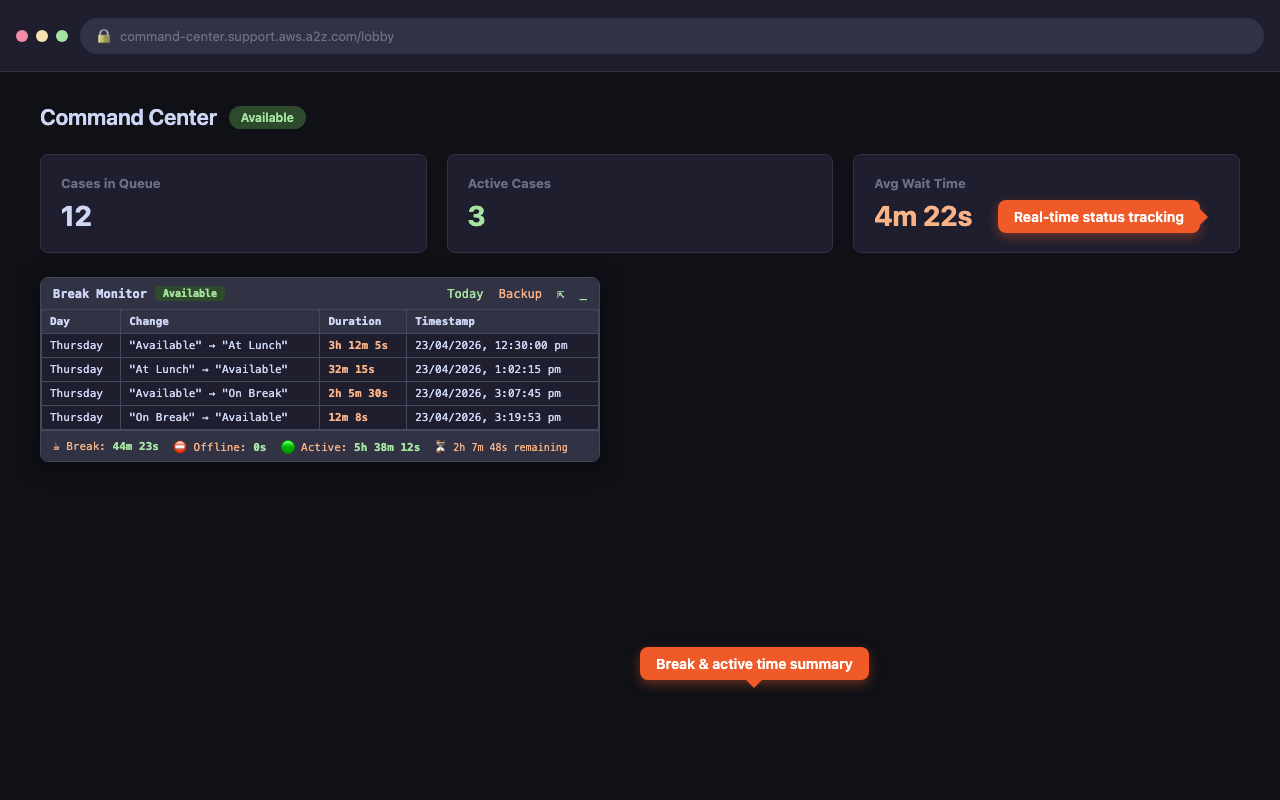
Weekly dashboard — summary cards, multi-week grid, and target progress
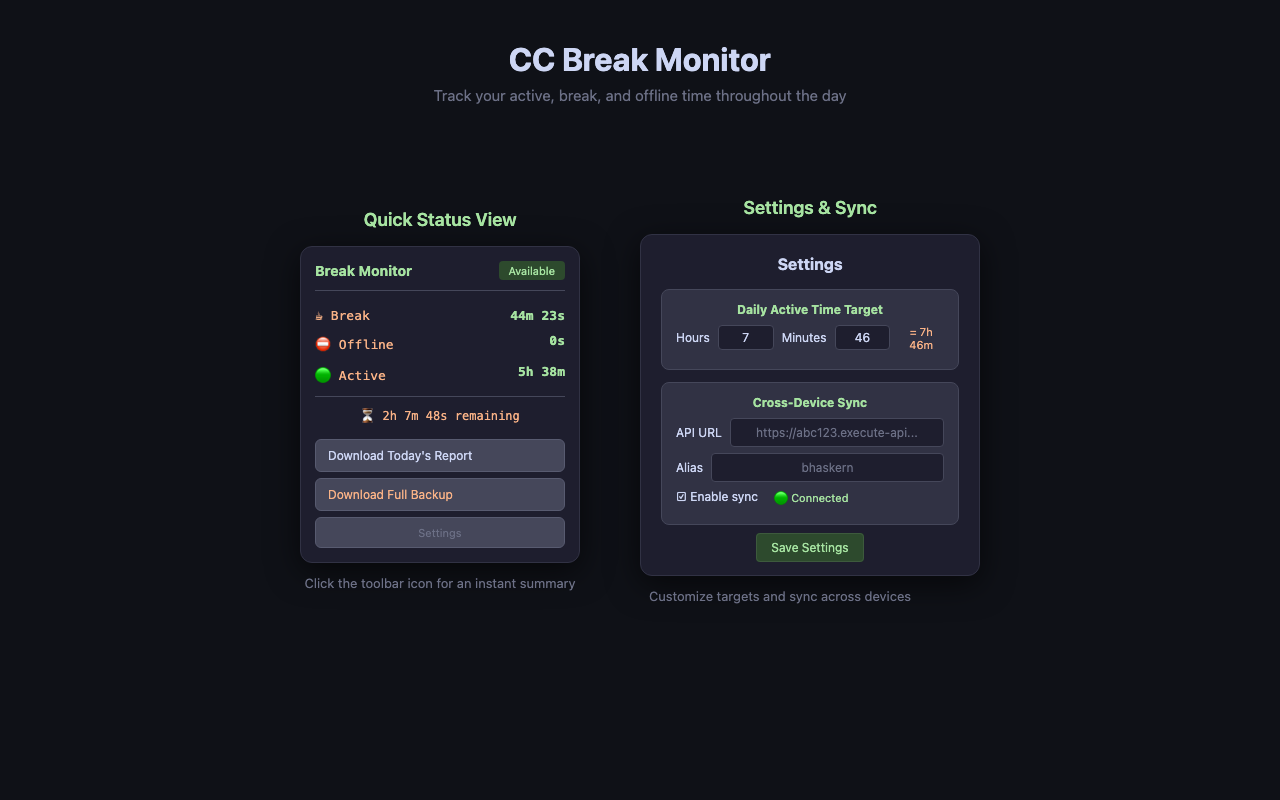
Deep dive — Active-vs-Break donut/bars and a work/break timeline
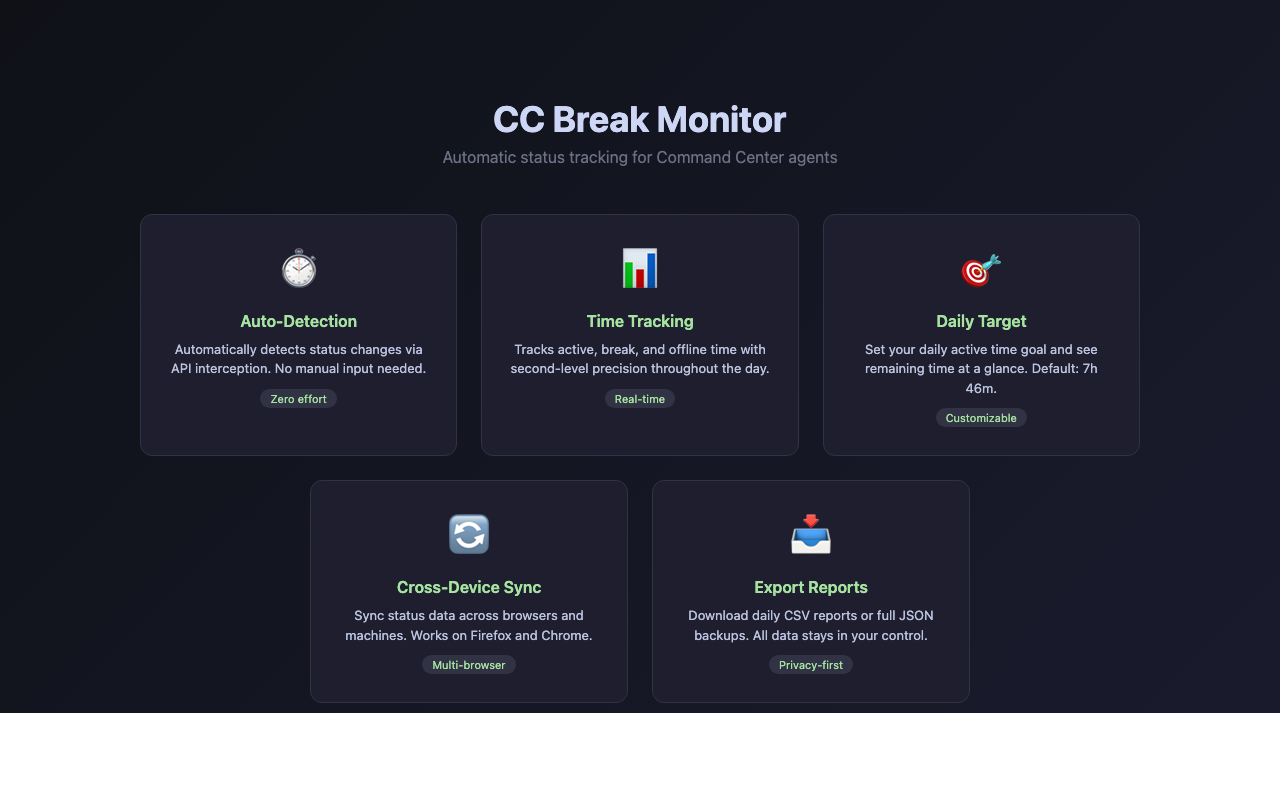
Everything the extension does — auto-tracking, deep dive, privacy-first
Active: Available, Available - Live contacts, Profile Role, Internal Meeting, Personal Time, Project Work, System Issues, In Training, Mentoring, Interviewing, Sup Ops, Q+, PSAP, Deep Dive, Customer Meeting, After Chat, After Call, On Chat, On Call, Missed-Chat, Documenting.
Break: On Break, At Lunch.
Offline: Offline, Offline d, Error, Status Unavailable.
Unknown statuses default to Active — new CC statuses work without an update.
All data is stored locally in your browser. Nothing leaves your machine unless you enable cross-device sync. Data persists across page reloads, tab closes, and browser restarts.
It zeros the displayed timers without affecting stored data. Useful for a clean visual starting point mid-shift. The reset clears on page reload — your actual totals remain intact.
Click the ◐ button in the panel header to cycle: dark → light → system. Or set it in Settings. The system option follows your OS dark/light preference.
Yes. A single background script handles all tabs — each status change is recorded exactly once. All open CC tabs see the same data.
$0/month. The CloudFormation stack uses API Gateway, Lambda, and DynamoDB — all within the AWS Free Tier for individual use. Data auto-expires after 90 days.
This was fixed in v1.4.0. Make sure auto-updates are set to On (not "Default"): go to about:addons → CC Break Monitor → set "Allow automatic updates" to On. You can also force-check via the gear icon → "Check for Updates". If still wrong, reinstall from the latest .xpi above.
Click the "Download .xpi" button above. Firefox will prompt you to install.
Click "Add" when Firefox asks for permission. The extension icon will appear in your toolbar.
Navigate to command-center.support.aws.a2z.com. The Break Monitor panel will appear automatically.
Click the toolbar icon → Settings to adjust your daily target or enable cross-device sync.
Go to about:addons → click CC Break Monitor → set "Allow automatic updates" to On.
⚠️ Don't leave this on "Default" — in managed environments, the global setting may be off, which means you'd silently miss updates.
Click the "Install from Chrome Web Store" button above, or go directly to: Chrome Web Store listing. This is an unlisted extension — it's only accessible via direct link.
Click "Add to Chrome" and confirm the permissions. The extension icon will appear in your toolbar.
Click the puzzle icon in Chrome's toolbar → find "CC Break Monitor" → click the pin icon to keep it visible.
Navigate to command-center.support.aws.a2z.com. The Break Monitor panel will appear automatically.
Click the toolbar icon → Settings to adjust your daily target or enable cross-device sync.
Chrome updates extensions automatically every few hours. No action needed.
Get the extension folder from your team (or clone the repo).
Go to chrome://extensions/ → toggle "Developer mode" (top right).
Click "Load unpacked" → select the Chrome-Extension/CC-StatusChange folder.
Unpacked extensions don't auto-update. You'll need to manually reload when a new version is available.
Use your personal Isengard account or any AWS account you have access to. The stack uses only free-tier eligible services (API Gateway, Lambda, DynamoDB) — effectively $0/month for individual use.
Choose your preferred method:
The stack creates: 1 API Gateway, 1 Lambda function, 2 DynamoDB tables, 1 IAM role.
Status will show CREATE_COMPLETE when done.
Go to CloudFormation → Stacks → cc-monitor-sync → Outputs tab.
Copy the SyncApiUrl value. It looks like:
https://abc123def.execute-api.ap-southeast-2.amazonaws.com/prod
Or via CLI:
aws cloudformation describe-stacks \

                --stack-name cc-monitor-sync \

                --query "Stacks[0].Outputs[?OutputKey=='SyncApiUrl'].OutputValue" \

                --output text
In the extension: click toolbar icon → Settings → scroll to Cross-Device Sync:
bhaskern)The extension will validate the API URL and show 🟢 Connected if successful.
Open Command Center on two different browsers or machines. Change your status on one — the other should pick it up within 30 seconds.
| Resource | Type | Cost |
|---|---|---|
| cc-monitor-sync-prod | DynamoDB Table (on-demand) | Free tier |
| cc-monitor-config-prod | DynamoDB Table (on-demand) | Free tier |
| cc-monitor-sync-prod | Lambda Function | Free tier |
| cc-monitor-sync-prod | HTTP API Gateway | Free tier |
| cc-monitor-sync-lambda-prod | IAM Role | Free |
Total estimated cost: $0.00/month for typical individual use (well within free tier). Data auto-expires after 90 days via DynamoDB TTL.
aws cloudformation delete-stack --stack-name cc-monitor-sync --region ap-southeast-2
This deletes all resources. Your local extension data is unaffected — only sync stops working.